New: Scratchpad, Text Highlighting, and a Croc Hint
May 19, 2026 · 3 min read
When a child is stuck on a word problem, the first thing they naturally want to do is mark up the text — circle the important numbers, cross out the noise, jot something in the margin. On paper, that's easy. On a screen, it usually isn't.
We just shipped three tools that change that. A freehand scratchpad. Text highlighting directly on the question. And in Crocodile Numbers, a new hint button that shows the animated crocodile before the student has to answer — so they can see the visual model first, then decide.
These aren't checkbox features. They're the kind of small things that make a practice session feel like a real workspace instead of a quiz form. Here's what each one does and why we built it.
✏️ The Scratchpad
The scratchpad is a floating freehand drawing panel that opens over the practice session. The child can write, draw diagrams, circle things, and cross things out — anything they'd do in a test booklet margin.
It has a pen tool and an eraser, undo, and a clear button. It's draggable and resizable so it can sit wherever it's not in the way. Strokes reset when the student moves to the next question, so the slate is always clean.
This is particularly useful for multi-step math problems, where kids need somewhere to work through the arithmetic before selecting an answer, and for reading comprehension questions, where writing down a key detail helps hold it in mind.
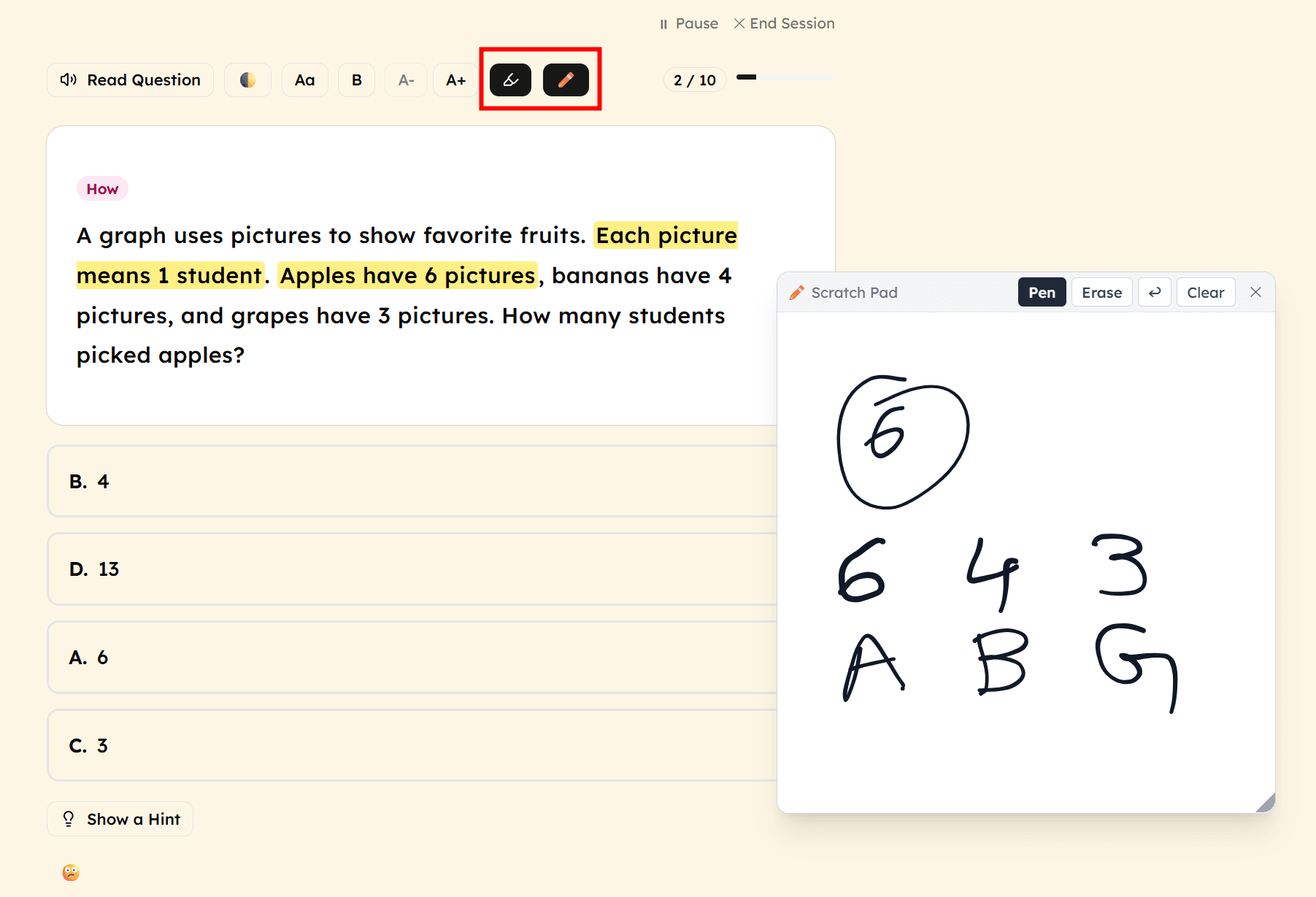
Scratchpad and text highlighting working together on a graph reading question.
🖊️ Text Highlighting
The highlighter button (the marker icon in the toolbar) lets a student click and drag over any part of the question to highlight it in yellow. Multiple highlights can be added and they persist through the session — they don't disappear when the student scrolls or clicks an answer.
This is most useful in reading comprehension. Highlighting the sentence that answers the question, or the specific numbers a word problem is asking about, is a genuine test strategy — and now kids can practice it digitally the same way they would on a paper SOL test.
Turning on highlight mode automatically turns off Bionic Reading (both affect text rendering and they don't mix), so the student always sees a clean, consistent view of the question.
🐊 “Show me the croc first!”
Crocodile Numbers teaches comparison symbols (< = >) using the classic visual of a hungry crocodile that always turns toward the bigger number. In Learn mode — where the goal is to build understanding, not just score points — we added a hint button that lets a student see the crocodile animation before they answer.
The crocodile shows both numbers with a visual count, animates to face the larger one, and plays the comparison sound. The student can watch it as many times as they need, then try to answer on their own.
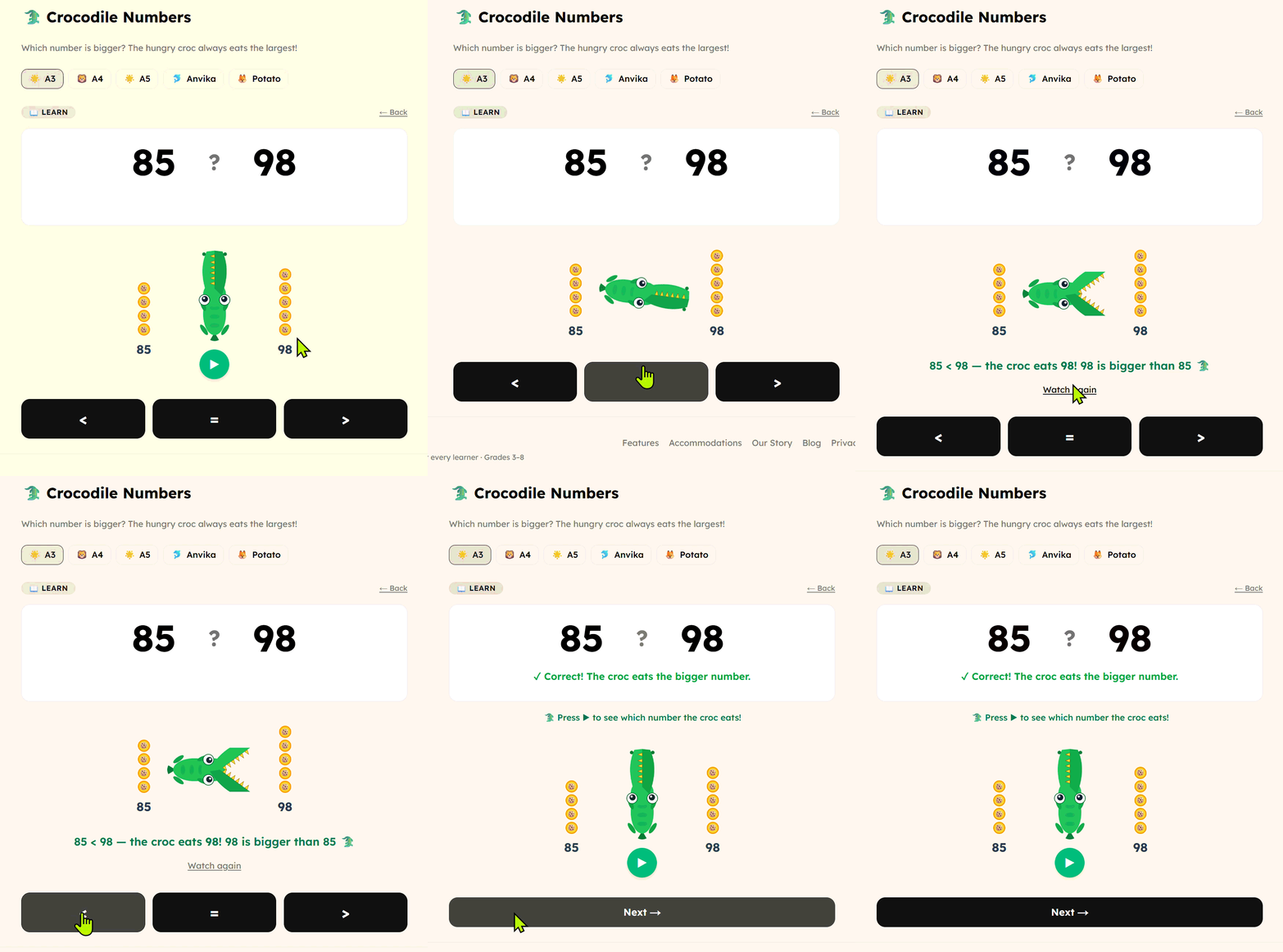
The full Learn mode flow — hint button, croc animation, and answering.
This matters for kids who are still internalizing the concept. Seeing the model and then answering beats simply being told they were wrong. The crocodile becomes a scaffold they can lean on until they no longer need it.
Try them and tell us what you think
These tools are live now for all SolPrep families. Open a practice session, look for the ✏️ (scratchpad) and highlighter buttons in the toolbar, and give them a try. For Crocodile Numbers, switch to Learn mode and look for the green hint button below the answer choices.
We build SolPrep around real feedback from families. If something works great, if something is confusing, or if there's a tool you wish existed — we genuinely want to hear it. Hit the feedback button inside the app or email us directly.
Try the new tools today
Free for all families. Works on phone, tablet, and desktop.
Create free account →